
McAffee has launched a new service called McAffee Social Protection, and it’s designed to protect your Facebook photos’ privacy. Here’s how to use it.

Protecting your photos with McAffee’s service will make sure nobody can download, share or print the photos you post on Facebook. It also includes facial recognition so you know when someone posts pictures of you and doesn’t tag you.
It uses a browser extension that only works on Firefox 8 or higher / Internet Explorer 8.0 or higher on a computers running Windows 7 Home Premium or higher. I would expect it’ll a Chrome version soon.
First, go to this address and decide who can see the posts the app makes on your profile, and click Go to App.

Now download and install what McAffee calls Photo Viewer.

Installation is straight forward following the install wizard. It’s installed for IE and Firefox and requires a restart of both browsers.

The app page displays a control panel that lets you to post protected photos, and see protected photos from friends who will need it installed too.

When you click Upload and Protect Photos, you’ll be asked to approve the app’s permissions.

Now you can choose a photo and upload it, then decide who gets to see it.

Friends that have the app installed can see your photos when they access the app, in the My Friends’ Protected photos tab. But they can’t download them or print them and it all turns black if you try to get a print screen.
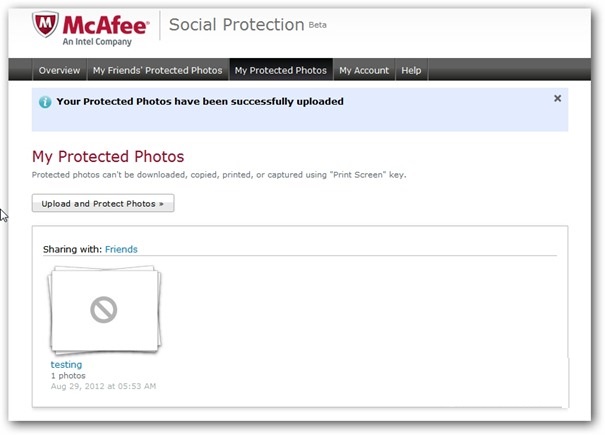
You get a notification when one of your photos finishes uploading, but clicking it only shows a blurred notification of the photo. Uploaded photos don’t show up on Facebook walls.
This might seem like a drastic solution since the whole purpose of Facebook is sharing, but works great if you want to make sure some photos don’t end up in the wrong hands. The service is still in beta so expect a few bugs, but in my testing it worked well overall.


