April 24, 2014

How to Remove Shortcut Virus from Computer & External devices

Have you ever faced problem with automatic creation of shortcut folders, or files with Name Autorun.inf, $RECYCLE.BIN created on your Pendrive or computer!!!
If yes than your computer is infected. These viruses create shortcut folder names with same name as of orignal folder with same icons as that of orignal folder, and if you follow these shortcuts or folder you end up with infecting your computer.
I have personally seen this problem with many computers having orignal Antivirus software installed in them. perhaps some of Antivirus Softwares are also not able to remove it completely.

If your computer’s infected with shortcut virus  and you don’t want to hassle with it,  then download  the application (link given at bottom of Article)  and follow the steps:

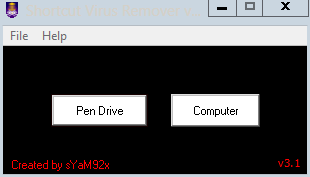
Step 1Open the Application


Step 2: Select the Pen Drive or Computer Which You Want to Scan
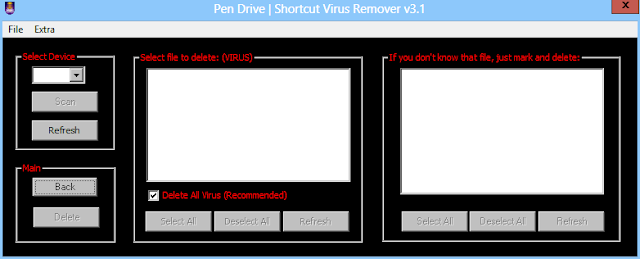

Step 3:Select the Drive and press Scan
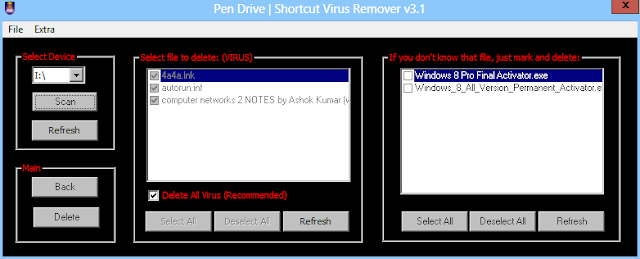

Step 4: Then Press Delete Option 
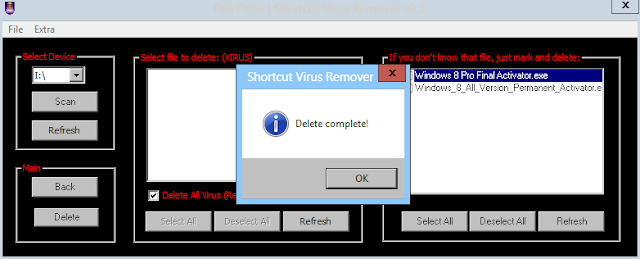

Step 5: Done All Virus  Removed


The Second part is your computer is infected by Virus.Its like root virus.So you can download http://www.malwarebytes.org/antirootkit/
click here to download. After install you scan and clear your trojan virus and restart your system.then it will be clear.

Note:If first two method not succeed you folow the below steps.

Last Step:You have to delete your user and again create a new user.

March 27, 2014

Concurrent RDP Patcher Enables Remote Desktop in Windows 7 & 8

There are a lot of third party remote control pieces software around such as the popular freeware tools VNC, and TeamViewer, but there are times when the built-in Remote Desktop Connection feature in Windows 7 is the most useful since it’s already present in Windows and you don’t need to install any third party software. All you need to do is to enable it because the Remote Desktop function is disabled by default. You can enable Remote Desktop and allow connection from other computers by going to Control Panel -> System -> Advanced System Settings -> click on the Remote tab.
From there, you can either select “Allow connections from computers running any version of Remote Desktop” which is less secure or “Allow connections only from computers running Remote Desktop with Network Level Authentication”. If you are setting up a connection to a different Windows version such as XP or Vista from your Windows 7 machine , then you need to choose the less secure option.
Windows 7 Home Premium Remote Desktop Connection
Tip: Pressing the WIN Key+ Pause/Break keys simultaneously brings up the System window.
If you only see the Remote Assistance box in the Remote tab but not Remote Desktop, that is because there are some restrictions that Microsoft has implemented in your version of Windows. Only Windows 7 Professional, Ultimate and Enterprise can accept connections from Remote Desktop but NOT for Windows 7 Starter, Home Basic and Home Premium. You can however, use Remote Desktop to initiate a connection from any edition of Windows 7.
Many branded laptops and computers come with Windows 7 Home Premium or possibly Home Basic pre-installed, but not to worry because there is a hack patch that can enable the Remote Desktop Connection in Windows 7 Home Premium with a single click.


There is a tool called Concurrent RDP Patcher which is meant to enable concurrent remote desktop connections, which means multiple logons per user. When you log in using the Remote Desktop Connection, the computer that is being controlled will show a message saying “Logged on remotely from COMPUTERNAME”. If you click on the user icon to login, the remote connection will be terminated with the popup:
Your Remote Desktop session has ended. Another user connected to the remote computer, so your connection was lost. Try connecting again, or contact your network administrator or technical support group.
This allows multiple users to control the remote computer using Remote Desktop.
Windows 7 Concurrent RDP Patcher
Amazingly, this tool also enables the Remote Desktop Connection for Windows 7 Home Premium. The good thing about this patcher is you can revert the changes back to the way it was by clicking the Unpatch button. There are some scripts that can also do the same by patching termsvr.dll file but it doesn’t provide a way to undo the patch.
By default a Remote Desktop Connection only allows you to login with a user account that has a password assigned to it. User accounts with a blank password cannot be used to login with a Remote Desktop Connection. You can handily bypass that restriction by checking the “Enable blank password logons” checkbox.
The Concurrent RDP Patcher tool is released at The Green Button forums, which if you never heard of it before, is the official Windows Media Center Community forum. The patcher was updated a while ago and is confirmed to work on Windows 7 Service Pack 1. It is also compatible with both 32bit and 64bit versions of Windows 7.

You need to download Windows 8 Patcher.exe (Download)
and install it in your windows 8 Computer . Within 8 sec your window  will restart.
windows8patcher
Now you are able to login multiple Concurrent Remote Desktop Sessions in Windows 8.
remotelogin
Basically, this patch done two things, one to patch the termsrv.dll to allow multi-concurrent users to log in, and one to make two registry changes to allow the TS connection in.
HKLM\System\CurrentControlSet\Control\Terminal Server\
fDenyTSConnections (DWORD) = 0
fSingleSessionPerUser (DWORD) = 0
Hope you like my post. How to Enable Concurrent Remote Desktop Sessions in Windows 8. Please Share with others.