When you use the
File tab, also known as Backstage, in a Microsoft Office program, the program may crash. If you review the Application log in this situation, you find an
ID=
1000 event that has one or more of the following crash signatures.
Note In the event data, the value for
Application Name may be one of the following:
Excel.exe, Msaccess.exe, Mspub.exe, OneNote.exe, Outlook.exe, PowerPnt.exe, or WinWord.exe
- 32-bit versions of Office programs
| Module name | Module version | Offset |
|---|
| Mso.dll | 15.0.4631.1000 | 0x00003ABC |
| Mso.dll | 0.0.0.0 | 0x0000329C |
- 64-bit versions of Office programs
| Module name | Module version | Offset |
|---|
| Mso.dll | 15.0.4631.1000 | 0x00000000013F766E |
| Mso.dll | 0.0.0.0 | 0x00000000013EB86E |
This problem has been reported after the installation of the July 8, 2014, update for Microsoft Office 2013.
This update installs version 15.0.4631.1000 of the Mso.dll file.
To resolve this issue, install the updated version of Mso.dll from August 12, 2014, or a later version if there's one available. The steps to install the update depend on the kind of Office 2013 installation (
Click-to-Run or
MSI) that you have installed.
To see whether you are using a Click-to-Run installation of Office 2013:
- Windows 8 or Windows 8.1
- Start an Office program.
- Right-click the program's icon on the taskbar, then right-click the program name, and then click Properties. An example is shown in the following figure.

- On the Shortcut tab, note the path that's specified in the Target box.
If you see \Root in the path, you have a Click-to-run version of Office 2013 installed. An example of this path is shown in the following figure.

- Click Cancel.
- Windows 7
- Click Start.
- Right-click any Office 2013 program icon, and then click Properties. An example is shown in the following figure.

- On the Shortcut tab, note the path that's specified in the Target box.
If you see \Root in the path, you have a Click-to-run version of Office 2013 installed. An example of this path is shown in the following figure.

- Click Cancel.
If you do not see \
Root in the path that's specified in the
Target box, you have an MSI installation of Office 2013.
- Resolution for MSI installations of Office
To resolve this problem, please install the following update:
This update installs version 15.0.4641.1001 of the Mso.dll file.
- Resolution for Click-to-Run installations of Office
To see the latest version information for Click-to-run installations, click the File tab in any Office program, clickAccount (or Office Account in Outlook), click Update Options , and then click View Updates .
For more information about installing Click-to-Run updates, go to the following Microsoft Office article.
Note If you cannot update your Office installation at this time, you can resolve this problem by uninstalling the update from July 8, 2014. The steps to uninstall the update depend on the kind of Office installation that you have on your computer.
- Click-to-run (C2R) installations
Use the steps in the following article to revert your Office 2013 Click-to-run installation to the version that's installed by the June 2014 update.
Note Version 15.0.4623.1003 will be used in step 5.
- MSI installations
Follow these steps to uninstall the July 8, 2014 update for Office 2013.
Note Because of the way in which Office updates are installed, you may have to perform these steps repeatedly until you no longer see KB2880987 listed as an installed update.
- Windows 8
- Swipe in from the right edge of the screen, and then tap Search. If you are using a mouse, point to the lower-right corner of the screen, and then click Search.
- Type windows update, tap or click Settings, and then tap or click View installed updates in the search results.
- In the list of updates, locate and then tap or click update KB2880987, and then tap or click Uninstall.
- Windows 7
- Click Start, and then click Run.
- Type Appwiz.cpl, and then click OK.
- Click View installed updates.
- In the list of updates, locate and then click update KB2880987, and then click Uninstall.
- Temporary Solution:
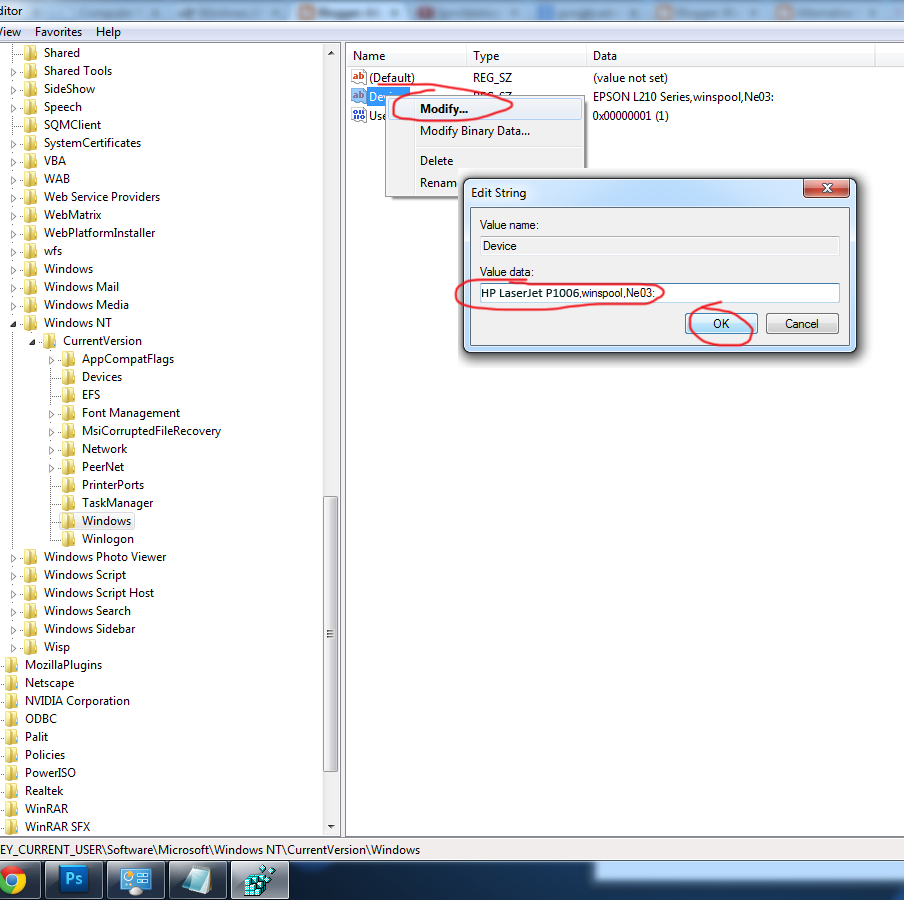
1.Check default printer and change to some other printer as default printer
2.Stop or disable Printer Spooler service and check it.